Home
Customer operations overview
Understand the core promise behind customer workspaces for delivery, billing, and support.
Follow completed work through Curoxi hourly invoicing: check task hours and rates, select the right scope, review invoices and track recorded payments.
By Curoxi · Published
A task can be technically complete while its billing details still need attention. The customer might not have agreed to the extra scope, the recorded hours might be wrong, or the task type might use an unexpected rate. A reliable task-to-invoice process makes those checks explicit before the invoice reaches the client.
This guide covers Curoxi’s hourly task-billing workflow. In that flow, invoice generation considers tasks in the selected customer and optional project scope that are in a stage configured as complete and are not already linked to an invoice, together with eligible additional expenses. Resource and fixed-price billing follow different configured paths.
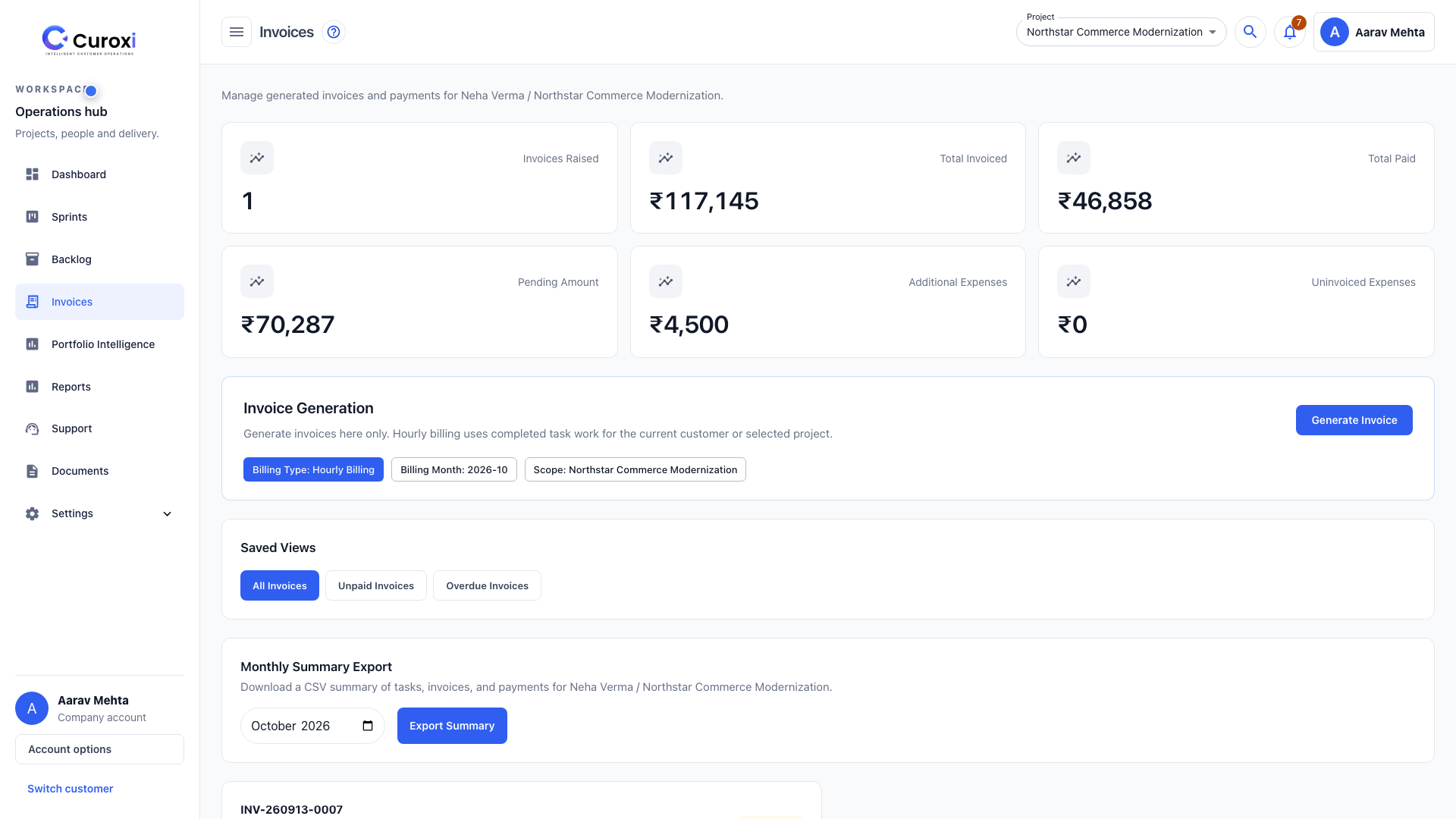
Record the scope and acceptance criteria with the task. Decide how your team distinguishes chargeable delivery, included support and corrections before the billing cycle closes. Curoxi’s hourly generator uses completion and invoice linkage as eligibility conditions; do not assume that it independently interprets your contract or decides whether the client should pay for a task.
Review the task’s hours and applicable rate using the billing setup for that customer and task type. Check actual entry values rather than assuming an original estimate is approved billable effort. If an entry is incorrect or a charge is not agreed, resolve it before invoice generation.
Review the generated invoice document, line items, amounts and customer details against the agreed work. Invoice creation links the selected tasks and expenses to the invoice. It is a separate action from sending the invoice to the customer, so keep an explicit review step between the two.
As an illustrative calculation, 8 agreed hours at a rate of 100 currency units produces a line amount of 800 before any other applicable charges or adjustments. This is an arithmetic example, not a Curoxi price, a tax rule or an amount read from the screenshot. The actual invoice depends on your configured data and supported billing rules.
If there is no eligible completed uninvoiced work or additional expense, the hourly workflow has nothing to generate. Investigate the scope, stage configuration and existing invoice linkage rather than duplicating tasks to bypass that result.
After review, send the invoice through the existing send action. Follow its status and recorded payment history in the workspace. A completed task is evidence about delivery; a generated or sent invoice is evidence about billing; a recorded payment is a separate business record.
Reconcile payments against the evidence your finance team uses. Do not mark an invoice paid just because delivery is finished or because an email was sent. If a customer disputes a line, include the invoice and task references in the customer support conversation and follow the supported correction process.
Pilot this checklist with one customer and one invoice cycle. It is particularly useful when delivery and finance currently exchange spreadsheets to work out what can be invoiced. Keep any external accounting process explicit and check the required plan and permissions before making this the team’s standard workflow.
Explore the features, check current workspace plans and watch the 19:08 guided demo using local example data.
Browse the core pages that explain how Curoxi works, how pricing is structured, and how to start a workspace.
Home
Understand the core promise behind customer workspaces for delivery, billing, and support.
Features
Review customer workspaces, AI task creation, delivery tracking, support, and billing workflows.
Contact
Route pricing questions, rollout discussions, and workspace setup needs to the right team.
Start
Start with the standard workspace signup flow or jump directly into the Pro trial.