Home
Customer operations overview
Understand the core promise behind customer workspaces for delivery, billing, and support.
A practical Curoxi workflow for managing client projects and invoicing together, from customer setup and delivery review to invoices and payment visibility.
By Curoxi · Published
A project board can show that a task is finished while the finance team still cannot explain what should be billed. The problem is often missing context: which client requested the work, which project owns it, what commercial terms apply, and whether the customer has already received an invoice. A shared workspace gives the team a consistent place to look for those answers.
In Curoxi, customer workspaces hold projects and provide access to delivery, invoices and support according to the account’s permissions and plan. This guide describes a repeatable operating process using those existing features. It is intended for agencies, consultancies and other teams delivering ongoing client work; it does not assume that every completed task should be charged.
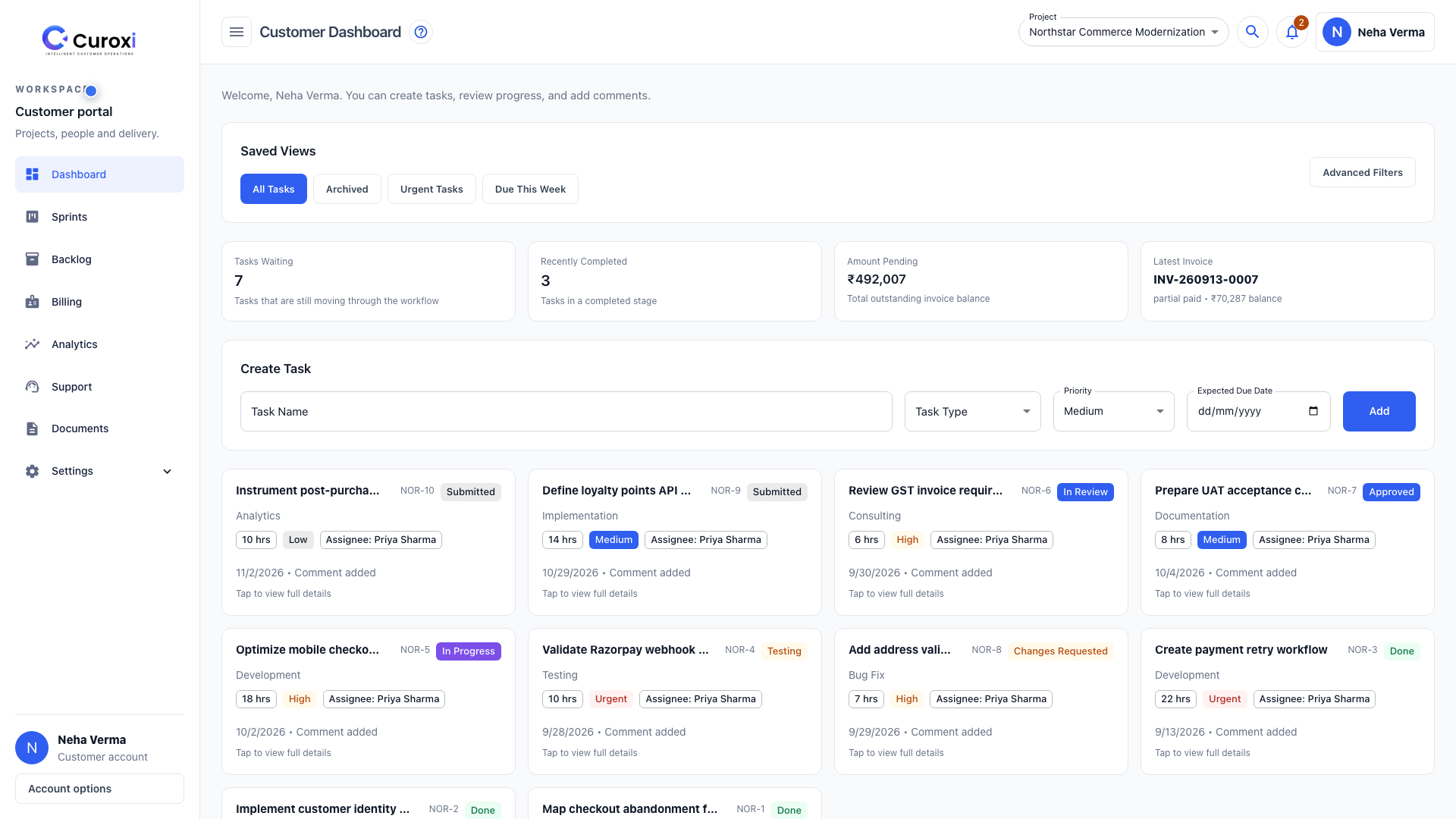
Select the customer and project before creating work. Agree what is included, what counts as a change request, who reviews completion and which billing model applies. Configure the customer billing profile and the rates or terms required for that model. Confirm company and customer access using their respective accounts.
For example, a checkout improvement could be a separate project under an ongoing client relationship. Give each task an outcome, a task type, an owner and a due date. Use releases and sprints where they help organize delivery. Keep the client’s acceptance criteria in the task discussion so the handoff to review is understandable.
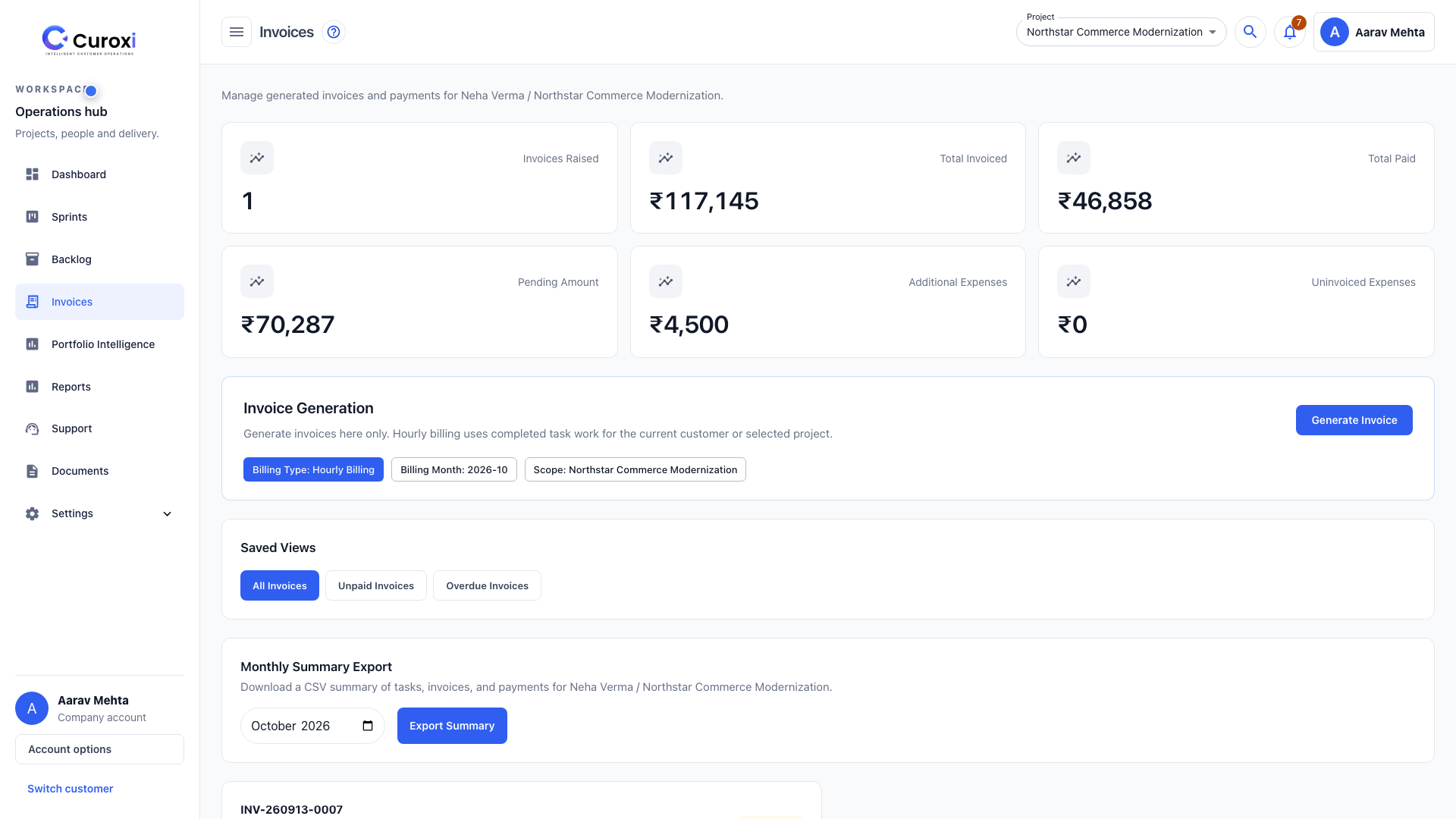
A generated invoice is not the same as a payment. Track the invoice state, recorded payments and remaining balance separately. If a client asks about a charge, use the task and invoice references to reconstruct the work that produced it, rather than relying on a spreadsheet total alone.
Use the supported correction workflow if the underlying billing information needs changing. Do not create an extra invoice merely to force a task to appear a second time. Reconcile recorded payments with the actual payment evidence and the accounting process your business uses. Curoxi’s workspace visibility does not by itself establish that money has reached a bank account.
Authorized customers can review their task progress and billing views. When support is enabled, use a ticket for a follow-up question and include the relevant project, task and invoice reference in its text. Curoxi support tickets are customer-scoped, so the project context must be stated explicitly.
A useful pilot is one client project and one invoice cycle. Ask the delivery lead to explain what was completed, finance to explain each charge, and the client to find the invoice and raise a question. Record missing context and duplicate entry before expanding the process to more workspaces.
This walkthrough uses hourly task billing. Resource billing and fixed-price arrangements have different configuration and review paths; do not apply the hourly completion rule to every contract. Check the current plan, permissions and billing setup before starting.
The product is worth evaluating when the same team repeatedly coordinates client delivery and invoicing. If a specialist accounting, tax or payment system is essential, include it in the pilot and define the handoff clearly. A common workspace should make ownership easier to follow, not conceal responsibilities.
Explore the features, check current workspace plans and watch the 19:08 guided demo using local example data.
Browse the core pages that explain how Curoxi works, how pricing is structured, and how to start a workspace.
Home
Understand the core promise behind customer workspaces for delivery, billing, and support.
Features
Review customer workspaces, AI task creation, delivery tracking, support, and billing workflows.
Contact
Route pricing questions, rollout discussions, and workspace setup needs to the right team.
Start
Start with the standard workspace signup flow or jump directly into the Pro trial.